An Instagram export can contain your follower and following lists. It is a snapshot for comparison, not a complete history of everyone who ever followed or unfollowed you.
Request the right information
Menu labels may vary by app version and language. Start from Instagram's settings or the official Accounts Center export page.
- Open Accounts Center → Your information and permissions → Export your information.
- Create an export and select the profile you want to check.
- Choose Export to device.
- Under the information selection, include Followers and following. If you also need Threads, check the available Threads information for that profile; it may be provided separately.
- Choose All time and JSON or HTML. Unfollow Checker accepts both formats. All time avoids restricting the requested data; it does not create an unfollow history.
- Start the export. When Meta marks it ready, return to the export page and download the ZIP.
Use Meta's displayed status and download deadline. Preparation time varies; an email may notify you that the download is ready rather than contain the archive itself.
Choose the format for the task
JSON is structured text for software; HTML opens as readable pages. Unfollow Checker supports both formats when they contain the required follower and following lists.
The important choices on the export screens
The screenshots below show Meta's English interface. Labels and layout can differ on your device; follow the purpose of each choice rather than expecting identical screens.
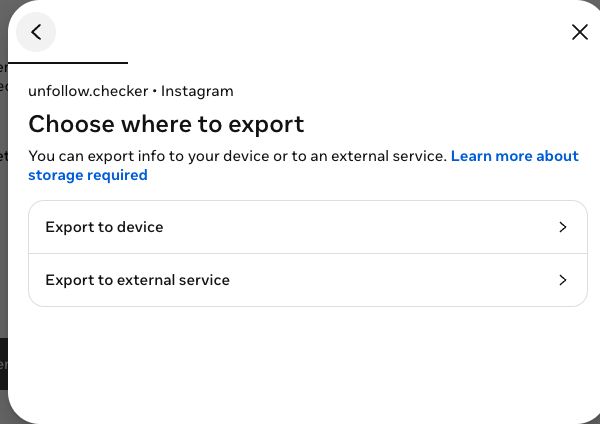
Choose Export to device for the manual ZIP workflow in this guide. Exporting to an external service is a different workflow.
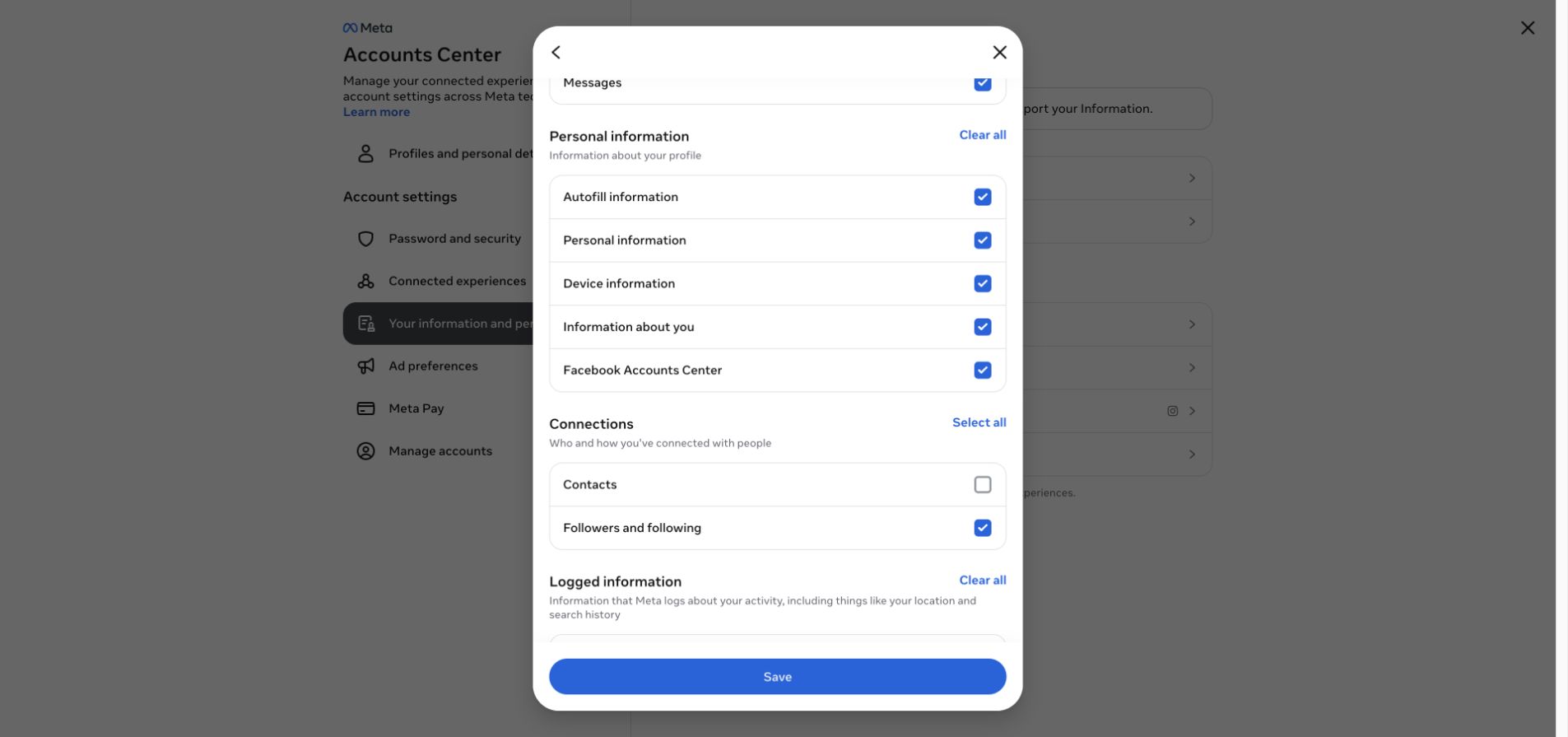
Under Connections, include Followers and following. Other categories visible as selected in this capture, such as messages or personal information, are not required for this check; deselect unrelated categories if you do not need them.
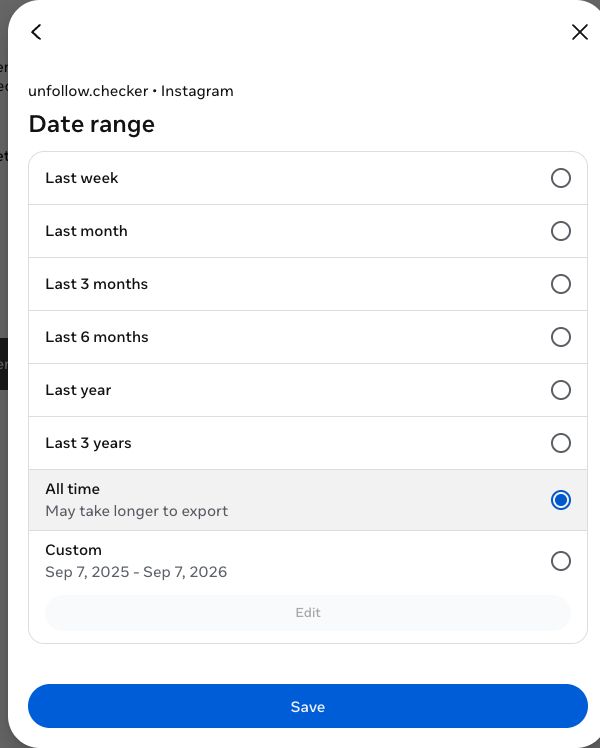
Choose All time for the baseline export. A limited date range can omit older relationships.
Before starting, check the selected profile, destination, categories, date range and format together. If Meta shows the export as pending, wait for its status to change; no fixed one-hour deadline is guaranteed. If the prepared download has expired, create another request rather than renaming an older archive.
Check the file before comparing
Keep the original ZIP. You do not need to unpack it for Unfollow Checker. JSON exports can contain followers_1.json, additional numbered follower files, and following.json; HTML exports use corresponding HTML files. Paths and packaging can vary. The ZIP file guide explains what each file holds and how the two formats differ.
If the checker reports missing followers or missing Threads data, verify your selected profile and categories before requesting another export. Do not interpret absent data as an empty audience. Excluding photos and messages you do not need also reduces the amount of personal information in the archive.
| Check | Why it matters | What to do if it fails |
|---|---|---|
| Correct profile | Different accounts are not comparable | Return to the export request and confirm the selected profile |
| Followers included | Needed for missing and added accounts | Request the relevant connections category |
| Following included | Needed for the non-mutual check | Include both relationship lists |
| All numbered parts retained | One part may contain only some followers | Keep the original ZIP rather than extracting one part |
| Threads data present, if needed | Instagram lists do not substitute for Threads | Check the available Threads export options |
| Download completed | A partial archive may not open | Download the prepared archive again |
The filenames mentioned in this guide are examples of supported layouts, not a promise that Meta will always package every export identically. If you inspect JSON, you may see a plain list or a list inside a named object. Do not manually reshape these files just to make them look alike; keep the original for troubleshooting.
When the result and your profile count disagree
An export and the number currently displayed in Instagram need not describe the same moment. People may join or leave while you are waiting for the file. Account availability can also change. Start by checking the request details and whether the archive contains the complete follower list, rather than editing the result to match today's displayed count.
What one file can answer
One export can identify accounts that do not currently follow back. To investigate changes, retain it and obtain a newer export later; the comparison guide explains the limits.
The original ZIP stays on your device when used here. Optional account sign-in saves the extracted follower lists and results to the cloud, as described in the Privacy Policy. Treat the archive as personal data when sharing or storing it elsewhere.
Practise checking an archive while yours is being prepared
Download the small teaching ZIP dated 1 September 2026. It contains invented data, not a real person's export. Use a separate browser profile or private window, stay signed out, and keep it out of your own saved history.
Import it unchanged into Unfollow Checker. For Instagram, expect 3 followers, 3 following, and 1 account not following back, demo_shop. This is a first snapshot, so it does not establish any earlier departures. The example intentionally splits followers between followers_1.json and followers_2.json; keeping both is essential.
If you want to inspect the structure, unpack a copy, not the original. The teaching ZIP also contains Threads files and a clearly labelled README. Real exports can use other supported layouts and need not include Threads. Continue with the two-file Instagram walkthrough to compare this baseline with the newer teaching archive.
The teaching JSON archive does not declare a requested date range, so Check the Date range is expected in the result. The example's contents are known; for your own archive, check All time in Meta and investigate any completeness warning. The invented usernames are not people to look up.
Frequently asked questions
Should I upload the whole account export to someone helping me?
Usually the full archive is unnecessary for explaining a file problem. Start with the error text and a redacted list of filenames. A follower list is personal information too, even if the archive contains no messages or photos.
Can I delete the ZIP after importing it?
You can, but then you lose your independent copy for rechecking the comparison. Browser storage can be cleared, and another device may not have the same local records. Choose a retention period that fits your needs and store any retained archives privately.
Where should I go if Meta changes the menu?
Open Accounts Center from Instagram itself and look for the information export controls. Meta documents the move of download controls into Accounts Center in its official information-management announcement. Use the labels in your current app when they differ from this guide.